![Group 37877@2x.png]](https://help.easyeat.ai/hs-fs/hubfs/Group%2037877@2x.png?height=32&name=Group%2037877@2x.png)
If your printer is unable to print, follow the below guide to resolve your issue:
Check if printer is disconnected
- A red printer icon on top right of Order Dashboard indicates one or more printers to be disconnected.
- Tap the printer icon to identify the disconnected printer, and press the retry button to get its latest connection status.
- If printer still shows as disconnected, restart your printer & wait for print to happen.
- You can confirm printer is connected to EasyEat POS by doing a test print from App Settings. The printer icon will change to green in this case.
Check your Wi-Fi settings
- Check if your device is connected to the configured network (Wi-Fi dedicated to EasyEat POS). If the device is disconnected, connect it back to the configured network.
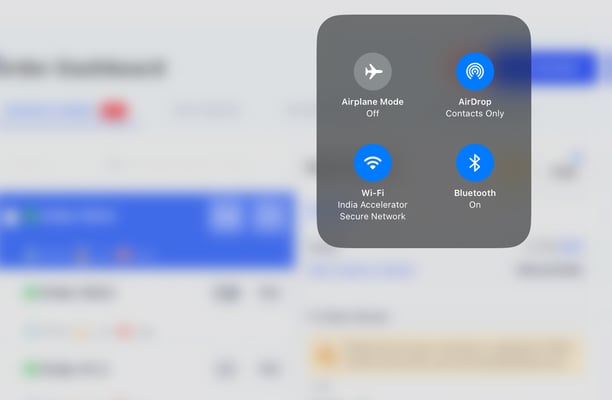
- You may receive an error message if too many devices are connected to your configured network.
- Disconnect the extra devices & make sure only EasyEat POS and printers are connected to the network for printing to work.
Check your internet speed
- Check internet speed on your device. A slow internet speed can lead to print delays.
- If internet speed is good, recommended >10 Mbps, restart your printer & printing should work.