![Group 37877@2x.png]](https://help.easyeat.ai/hs-fs/hubfs/Group%2037877@2x.png?height=32&name=Group%2037877@2x.png)
Follow the steps below to manage ingredients in your inventory. You can also click to jump to a specific topic that you want to learn:
Add a new ingredient
You can add a new ingredient by following these steps:
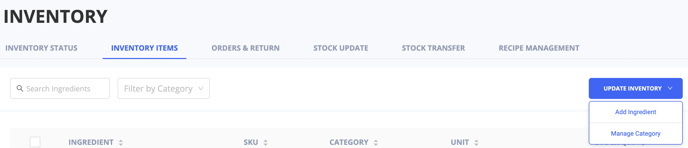
- In your Partner App or Headquarters, select Inventory tab from the side navigation bar. Select Update Inventory and then Add Ingredient.
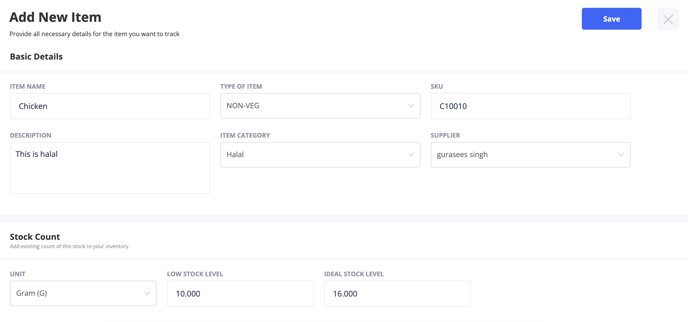
- Add basic details about your ingredient:
- Item Name: Name of the Ingredient.
- Type of Item: Choose whether the ingredient is veg or non-veg.
- SKU: Unique code you want to associate with the ingredient.
- Description: Any extra details you want to add about the ingredient.
- Item Category: Map ingredient to a particular category in inventory (like vegetables, raw meat, etc).
-
- Supplier: Map ingredient to a particular supplier.
- Add details related to stock count:
- Unit: Define a unit of measure for your ingredient (like Gram, piece, teaspoon).
- Low Stock Level: Stock level at which you should be notified to restock your inventory.
- Ideal Stock Level: Stock level above which your inventory should ideally be to prevent any business loss.
- Press Save button to confirm your changes.
- You can Edit an ingredient by selecting its name and pressing the Save button once changes are done.
Delete an Ingredient
You can delete an ingredient by following these steps:
- In your Partner App or Headquarters, select Inventory tab from the side navigation bar.
- Select Update Inventory and then the selection box at left for the ingredient(s) you want to delete.
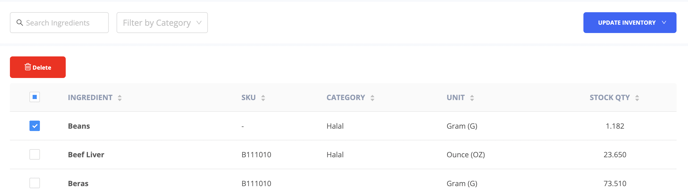
- Once selected, a Delete button will appear. Press the delete button and the selected ingredient will be deleted.
- You can delete all your ingredients in a single go by pressing the selection box corresponding to the table header.